A microcontroller lets your programs reach into the physical world: read a sensor, respond to a button, move a motor, or put information on a tiny screen.
The Raspberry Pi Pico WH is a small board we can use to explore those possibilities. This page introduces the board, the kit, and the programming tools. It is also a home for a growing collection of project lessons, beginning with an OLED display.
You do not need to know what a microcontroller is before reading. We will start with its purpose and the parts you can see. Each project guide explains the background and supplies it expects you to bring.
What Is a Pico?
A Raspberry Pi Pico is a small microcontroller board: a board built around a chip that runs a program and connects it to electronics. Your code can read a button, measure a sensor, change a light, or send a picture to a screen.
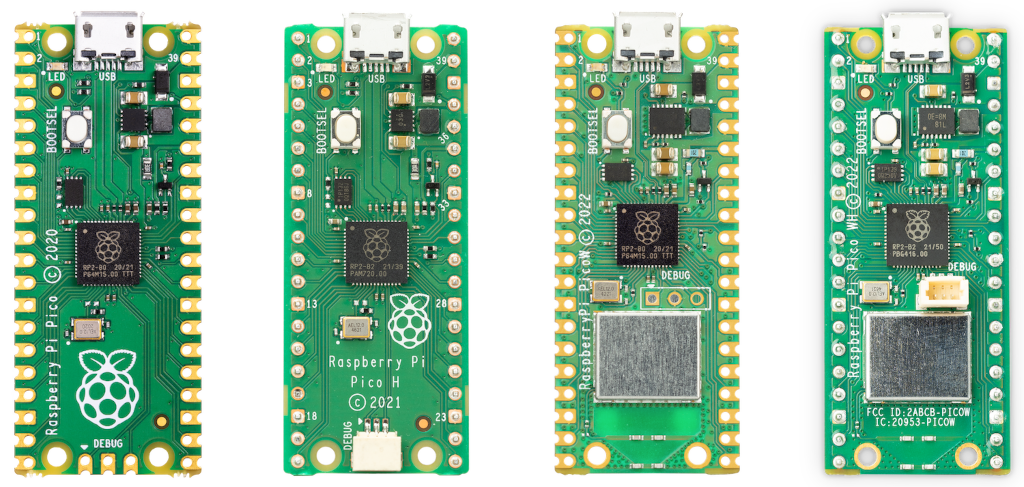
The Pico WH in our kit uses the RP2040 microcontroller. W identifies the wireless model; H means the metal header pins are already soldered on. Those pins let us attach wires without soldering. We will start with a wired display; wireless projects can come later. See Raspberry Pi’s board guide for the model differences.
How Is This Different from Programming a Laptop?
We still use variables, loops, functions, and Python. What changes is where the program runs and what it controls.
| On a laptop | On our Pico |
|---|---|
| Python runs under an operating system such as Windows or macOS. | MicroPython runs on the microcontroller, without a desktop operating system. |
| Your program often uses a keyboard, files, and a large screen. | Your program can use electrical pins, sensors, buttons, and a tiny display. |
| You usually have ample memory for a small Python exercise. | Memory is limited, so the way we store a picture becomes worth understanding. |
| You normally launch a Python script from an editor or terminal. | A program saved to start on the Pico can keep working from a suitable power supply after the laptop is disconnected. |
MicroPython is a version of Python designed for small devices. Much of the language will feel familiar; hardware modules such as machine give it new jobs. Your laptop is the workbench where you edit and send code. The Pico is where the hardware program runs. Raspberry Pi’s MicroPython guide explains that connection.
Many Fields, One Project
Microcontroller projects bring together programming and computer science, computer engineering, electronics, mathematics, physics, and design. Depending on what you build, you may also explore mechanics, robotics, control systems, and networking. A distance display, for example, combines a physical measurement, a calculation, a program, and a visual explanation. Working on one device lets us see how those fields help each other.
What Could You Make?
Think of a Pico project as input → decision → output. A sensor or button provides information, your code decides what to do, and something changes in the world.
| Project idea | Input | What your program could do |
|---|---|---|
| A desk weather display | Temperature and humidity sensor | Show readings and draw a changing bar graph. |
| A tiny game | Joystick or buttons | Move a character, detect collisions, and keep score on the OLED. |
| A distance gauge | Ultrasonic sensor | Turn a measured distance into a number and a picture. |
| A motion counter | Motion sensor | Count events and display the total. |
| A connected status display | A message over Wi-Fi | Show an update from another device. |
These are possible projects, not skills you need before starting. Our first output is simply a picture. Once you understand that output, you can decide which input should control it.
Projects
Each project follows a different question through a sequence of lessons. We begin with a working result, explore the ideas underneath it, and build toward code you can explain and change yourself.
Project 1: The OLED Display
How does a Python instruction become light on a screen? Connect a small OLED, draw pictures and animations, investigate bits and memory, then build a small display driver. The project guide includes the prerequisites, supplies, wiring, and ten-phase roadmap.
Explore the OLED project and its lessons →
This is the first project in a growing collection. Later projects can bring in sensors, controls, motion, and wireless connections. The aim is to become increasingly independent: plan an experiment, interpret its result, and turn your own idea into a working device.
See all available Pico guides and lessons in reading order.
The Kit and Your Workbench
I teach these projects with the 52Pi Raspberry Pi Pico WH IoT Starter Kit, KR-0006. It brings together a Pico, displays, sensors, a joystick, lights, motors, jumper leads, and a breadboard. See the kit product page and 52Pi kit wiki for the current contents and examples.
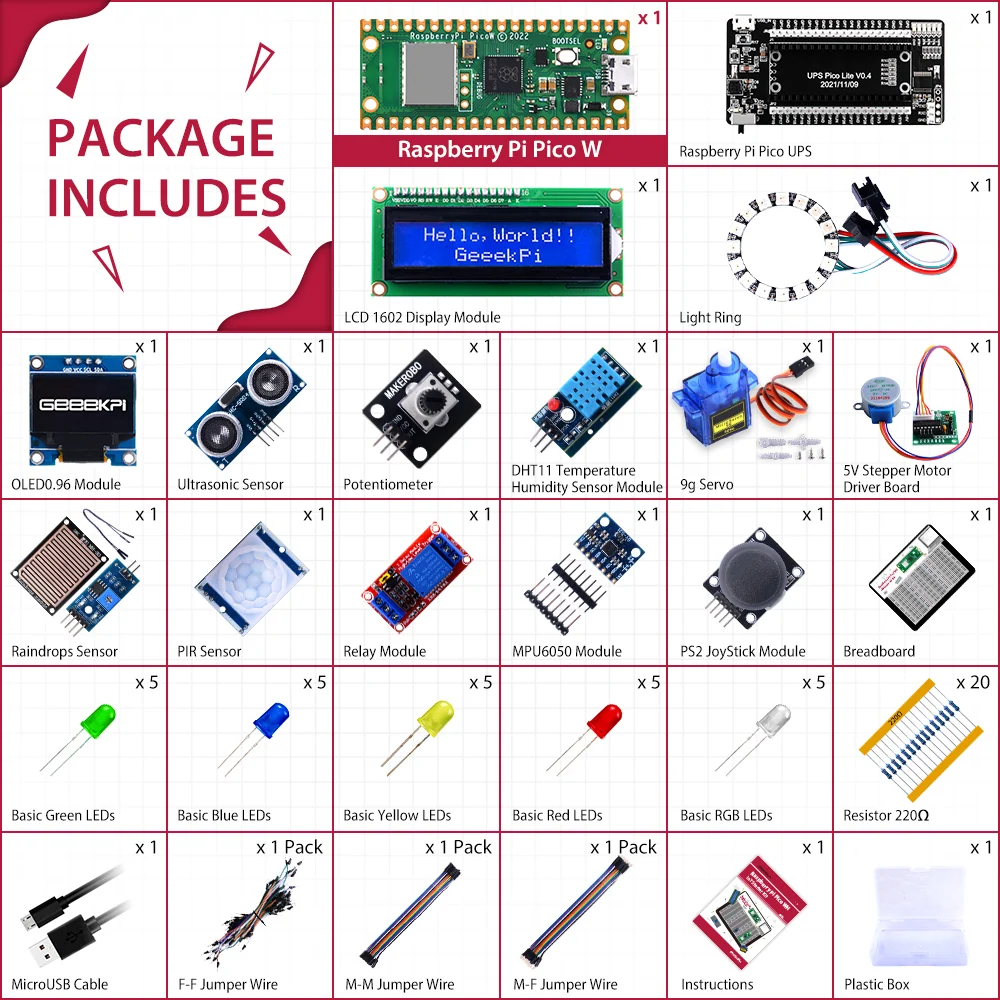
The kit is an investment in a collection of reusable parts. A sensor you try in one project can later become an input for another; a display can show a reading, a menu, or a game. You do not need to understand or connect everything in the box at once.
| On your workbench | What it is for |
|---|---|
| Pico WH | Runs your program; the soldered headers make temporary connections convenient. |
| USB data cable | Connects the Pico’s micro-USB port to your computer for programming and power. A charge-only cable cannot send code. |
| Jumper leads | Join pins to other components. Female ends are sockets; male ends are exposed metal pins. Use the kind of ends your connections need. |
| Breadboard or labelled breakout board | Makes temporary connections easier to arrange and check. The kit’s UPS board also exposes labelled pins. |
| Components for one project | Start with a small set. Each project guide lists its own supplies and connections. |
For our first OLED project, I recommend four female-to-female jumper leads and the UPS’s labelled breakout pins; a breadboard is another option. The OLED guide explains both. Check your box for these leads: the kit photo shows them, while its written list names only male-to-male and male-to-female leads.
The Kit’s Demo Code and Libraries
The manufacturer also provides a demo-code ZIP, with its source and file history on the 52Pi wiki.
Inside Demo_code and libraries, you will find:
| Folder | What it contains |
|---|---|
Democode | Example projects combining components: a potentiometer with the OLED, a joystick with the OLED, an ultrasonic distance display, and sensor web projects. |
lib | Supporting libraries, including ssd1306.py for the OLED, plus libraries for other displays and sensors. |
Use these examples as a reference and a source of project ideas. Each demo needs its own wiring and supporting libraries. The OLED project guide explains how the supplied examples relate to our first project.
Why These Lessons Accompany the Kit
The manual gives us useful diagrams and examples for the components. In teaching from it, I wanted more explanation, more questions, and more chances for students to work out why a program behaves as it does. That is why I am building these project lessons, beginning with the OLED.
A working example gives us a place to begin. Our next step is to understand it well enough to change it deliberately. We will predict, test, explain, and eventually write the code we first borrowed. The aim is increasing independence: being able to look at a new project idea and work out how to begin.
Get to Know the Board
Hold the Pico with its own micro-USB connector at the top, looking at the component side. The main parts have different jobs:
| Part | Why it matters |
|---|---|
| RP2040 | Runs our instructions and holds working data in RAM. |
| Flash memory | Keeps firmware and saved files when power is removed. RAM is temporary; saved files are a different kind of storage. |
| Micro-USB connector | Connects the Pico to the laptop for programming, the interactive prompt, and power. |
| BOOTSEL button | Used while connecting USB to enter the mode for installing firmware. It is not the normal Run button for a Python file. |
| Two rows of header pins | Carry power, ground, and signals to other components. |
| Wireless hardware and antenna | Let the WH communicate wirelessly in suitable projects. We leave those features for later. |
The original Pico WH has 264 kB of RAM and 2 MB of flash—small enough that a 1,024-byte picture is a useful thing to investigate. The Pico specifications give the hardware details.
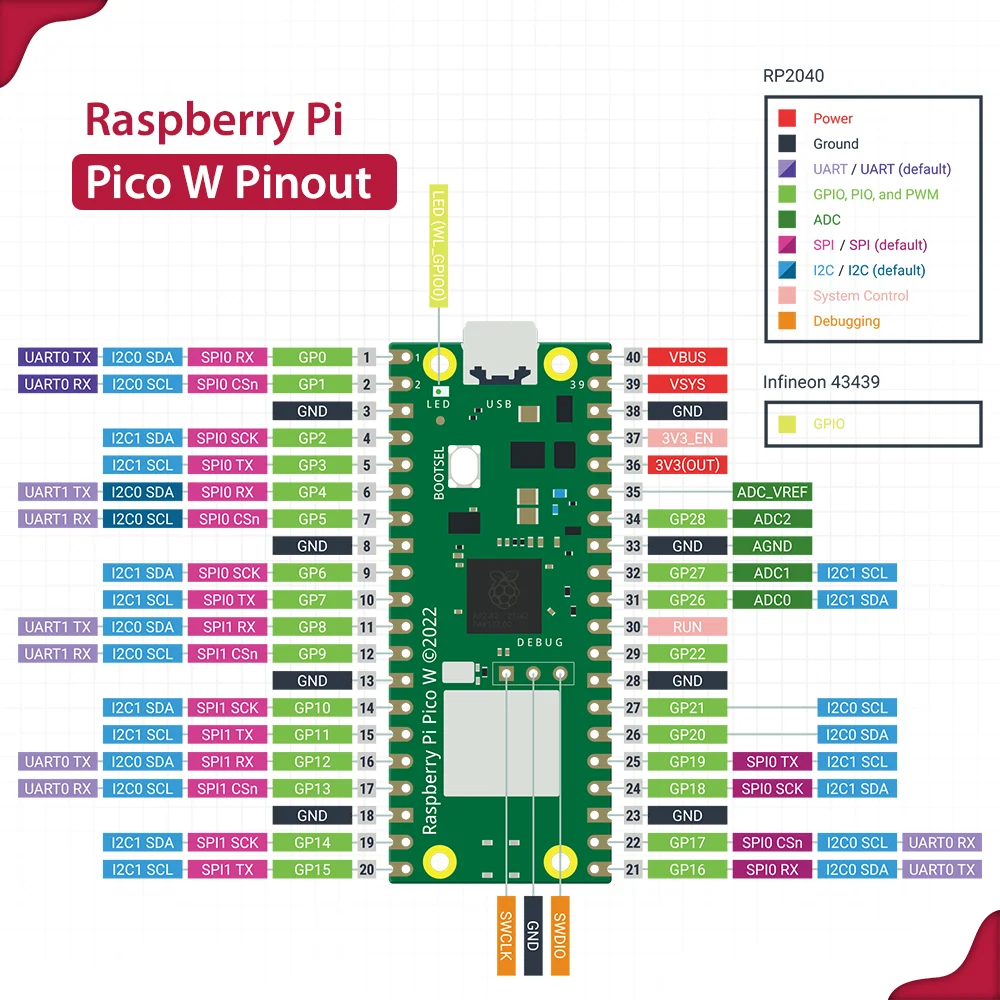
A GPIO is a general-purpose input/output connection. A pin such as GP0 can have different jobs depending on how we configure it. Some GPIO pins can carry communication signals such as I²C; some can measure an analogue voltage. Power and ground pins have different jobs from GPIO.
Explore the Pico WH pins
Hover, tap, or Tab to a pin to read its job. Numbers are physical header positions; GP labels are the names used in code. This is a top view with USB at the top.
USB ↑ · left: 1 → 20 · right: 40 → 21
GP0 · physical pin 1
General-purpose input/output 0: your program can read or control a digital signal. One alternate function is I2C0 SDA (data); software must select that function. In Python, Pin(0) names this GPIO; its physical header position is 1.
Edge colors: green = digital GPIO; blue = GPIO with analogue input; charcoal = ground; clay = power; purple = control/reference. Labels and explanations identify each function too.
GPIO uses 3.3 V logic. A power pin is not an interchangeable GPIO pin. The board drawing is simplified; use the official pinout for hardware reference.
You do not need to memorize the pinout. Learn to find a named pin and check its purpose. In particular, Pin(0) means GP0, not physical pin 0. GP0 is at physical header position 1.
Full Pico W / WH pinout reference
Choose an Editor: Thonny or VS Code
An editor is where you write code. An IDE combines an editor with tools for running and inspecting it. Both choices below can send our MicroPython programs to the Pico; you do not need to learn both.
| Choose | Why you might use it | Resources |
|---|---|---|
| Thonny | A simple interface for learning Python, with a Shell for trying short commands. A good starting point if you do not already have an editor preference. | Thonny downloads and Raspberry Pi’s Pico getting-started guide. |
| VS Code + MicroPico | Useful if you already work in VS Code or want its project tools. MicroPico adds the connection and commands for running code on the Pico. | VS Code downloads and MicroPico’s official setup instructions. |
Both need MicroPython firmware for the correct board. For Pico WH, use the Pico W firmware. Follow Raspberry Pi’s MicroPython setup resources for installation; this introduction is a guide to the choices, rather than another setup walkthrough.
Prefer to watch someone go through setup? If the written instructions feel confusing, try this setup video on YouTube. It is an optional companion to the resources above.
When a lesson asks for a short command at >>>, use the Pico’s MicroPython Shell or MicroPico terminal. A laptop Python terminal is a separate Python interpreter and cannot directly use the Pico’s machine module. Open the board connection in one editor at a time so the tools do not compete for it.
Optional for VS Code users: if names such as oled disappear after running setup, Phase 4’s Python-session note explains that behavior and the relevant setting. If your session already keeps the names, you can skip it.
Glossary
| Term | Meaning |
|---|---|
| Microcontroller | A chip that runs a program and connects it to electronic inputs and outputs. |
| MicroPython | A version of Python designed for small devices such as the Pico. |
| GPIO | A general-purpose input/output connection whose job is selected by the program. |
| Header | A row of metal pins or sockets used to connect boards and wires. |
| RAM | Temporary working memory used while a program runs. |
| Flash memory | Storage that keeps firmware and saved files when power is removed. |
| Firmware | Software installed on the device; MicroPython firmware lets it run our Python programs. |
| REPL | An interactive prompt where you can try short instructions on the Pico. |